One video.
Three layouts.
The same conversation can be cut three ways. MasterClip lets you pick the layout that fits your show: one speaker full screen, both people stacked in a split screen, or the whole wide shot framed with a headline above and captions below.
Pick the layout before you start
Auto picks per moment. Or choose Speaker focus, Framed wide or Split screen for every clip of the video.
Try it free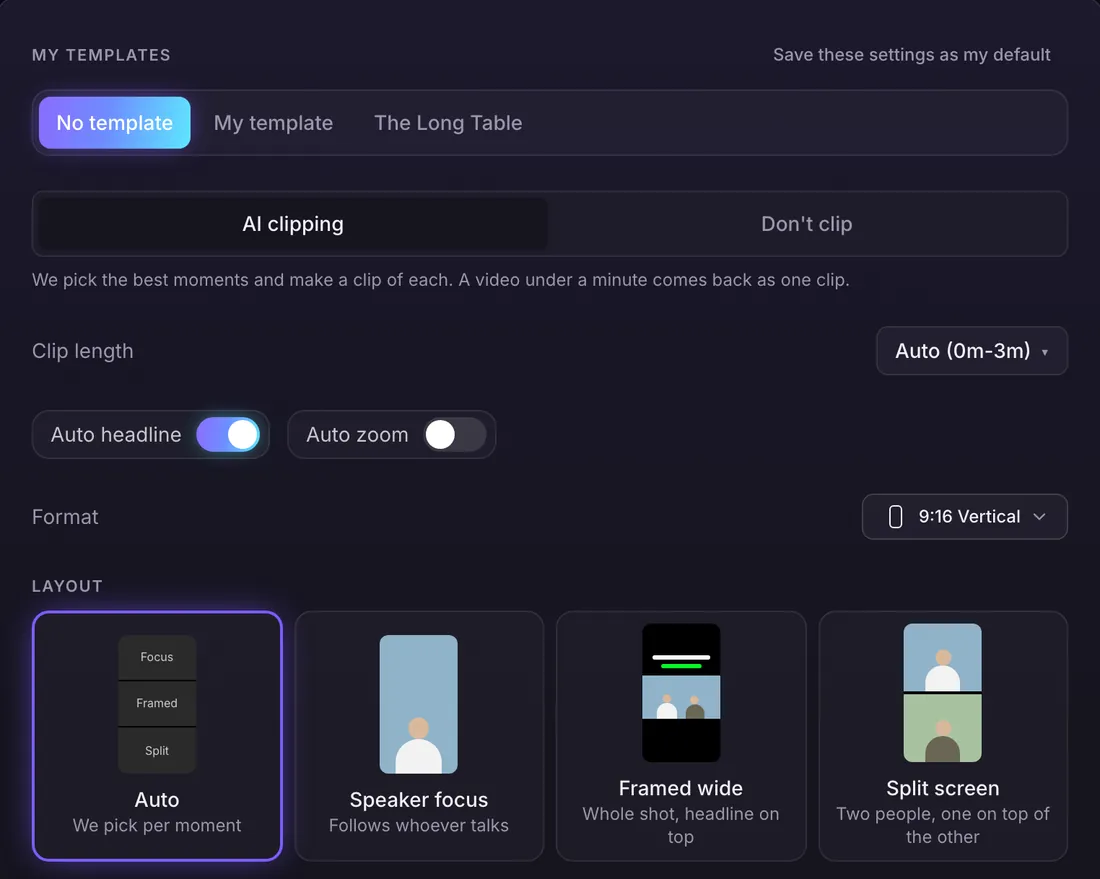
Save it once for every video
Put the layout in a brand template with your captions and logo, and every video you start with it comes out the same way.
Try it free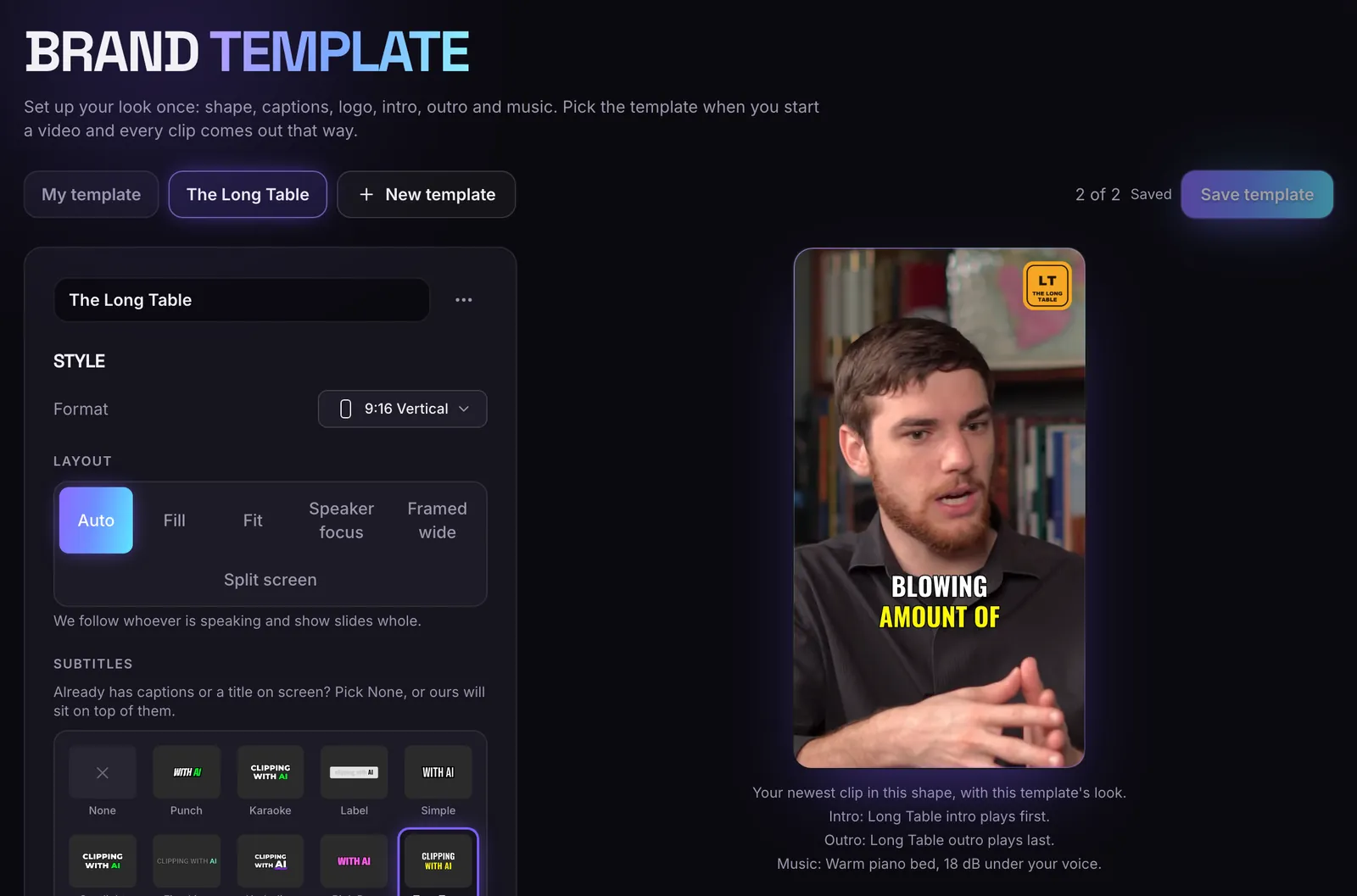
Speaker focus
Always one person full screen. Never splits.
Split screen
Both people stacked, top and bottom, for the whole clip.
Framed wide + headline
The whole picture in the middle, your headline on top, captions below.
Switch any time
Pick it when you submit, save it in a brand template, or change it in the editor.
Which layout to choose
Speaker focus suits interviews where one person does most of the talking. Split screen suits fast back and forth, where both faces matter. Framed wide suits panels and shots where the setting tells the story.
All three work in every shape MasterClip makes: vertical 9:16, square 1:1, portrait 4:5, wide 16:9.
Questions
Can I change the layout after the clips are made?
Yes. Switch it in the clip editor and save. Saving costs no credits.
Can every clip use my layout by default?
Yes. Save the layout in a brand template and pick that template when you submit.
Is MasterClip free?
Yes. The Free plan gives you 30 minutes of video a month with no card. Free clips carry a small watermark and are deleted after 3 days, so download the ones you want. Paid plans start at $7 a month.
More of what it does
Clips shown were made by MasterClip from Anabaptist Perspectives Ep. 159 (CC BY 3.0) and Mike Herrera Podcast #361 (CC BY). The brand and its logo are made up for the example.
Clip it
like a master
30 free minutes a month. No card needed.