


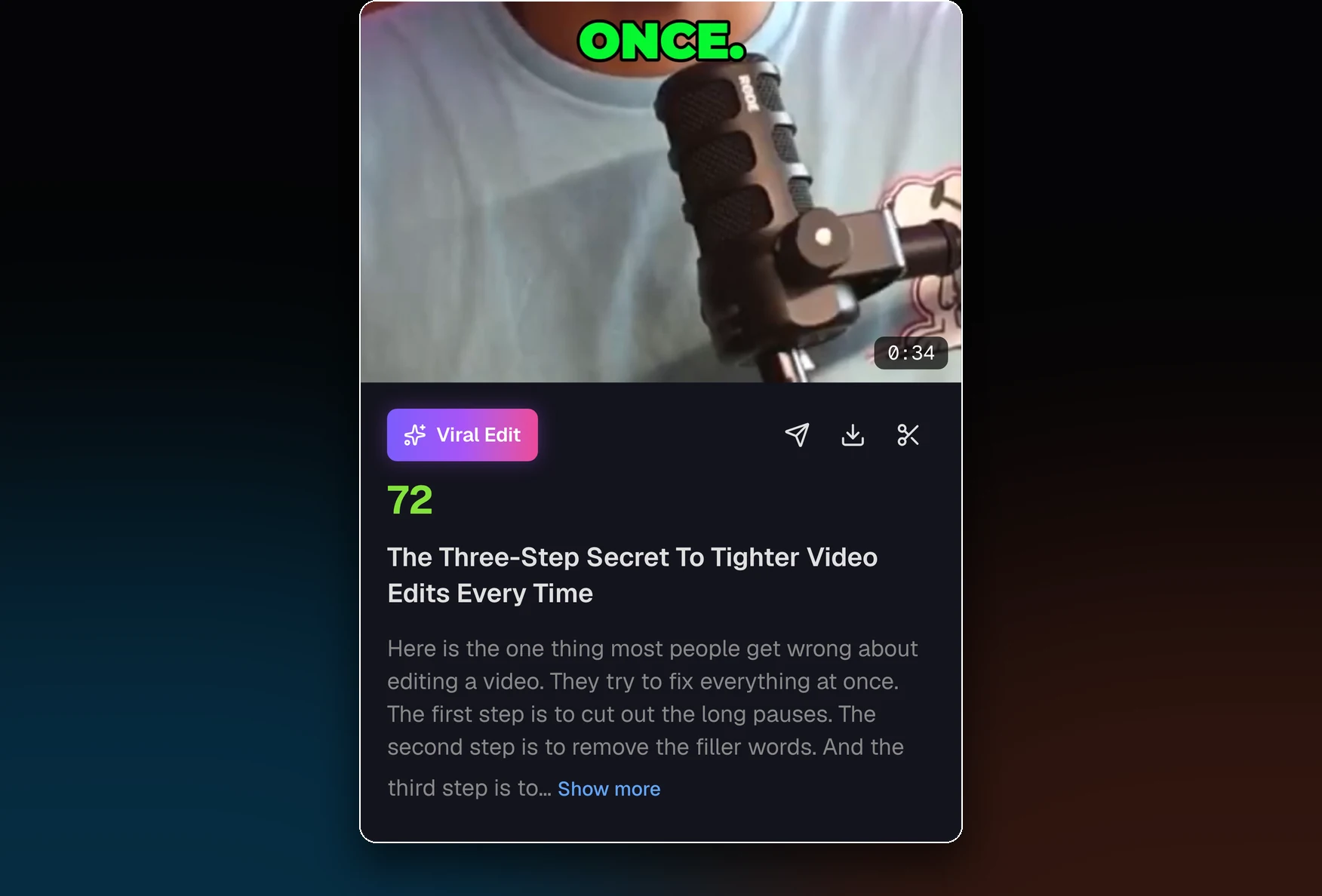
Picks the moments worth posting
It reads the whole transcript and pulls complete thoughts. Each clip comes back with a title, a hook label and a score out of 100, with the best clip first.
AI clip maker
MasterClip picks the moments worth posting from a podcast, interview or talk, keeps whoever is talking in frame, and adds captions.
30 free minutes a month. No card needed.
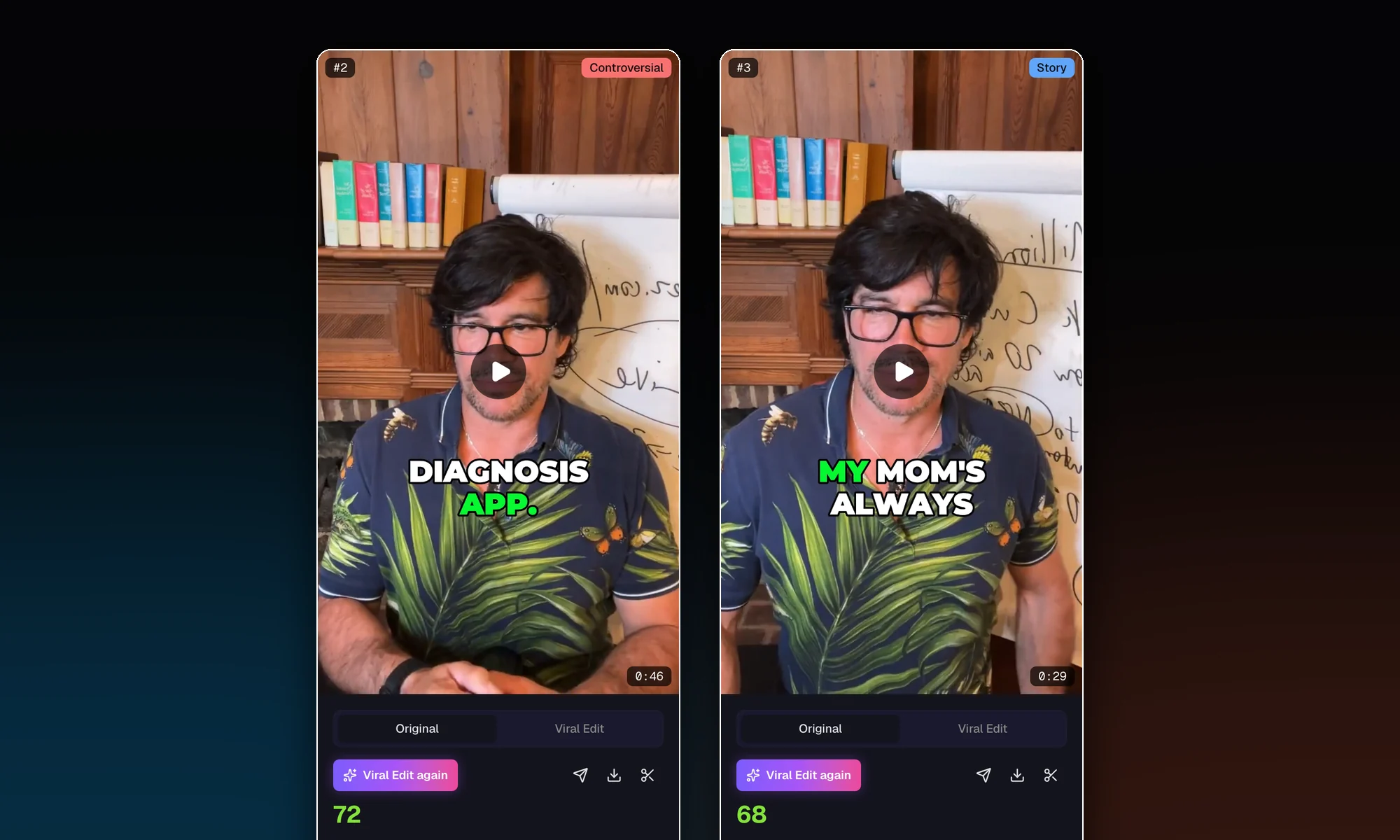
It reads the whole transcript and pulls the moments that open strong and land their point. Each clip gets a title and a score out of 100.
Clips sized for
What the AI does
It finds the moments worth posting, then frames each one around the person speaking.
It reads the whole transcript and pulls complete thoughts. Each clip comes back with a title, a hook label and a score out of 100, with the best clip first.
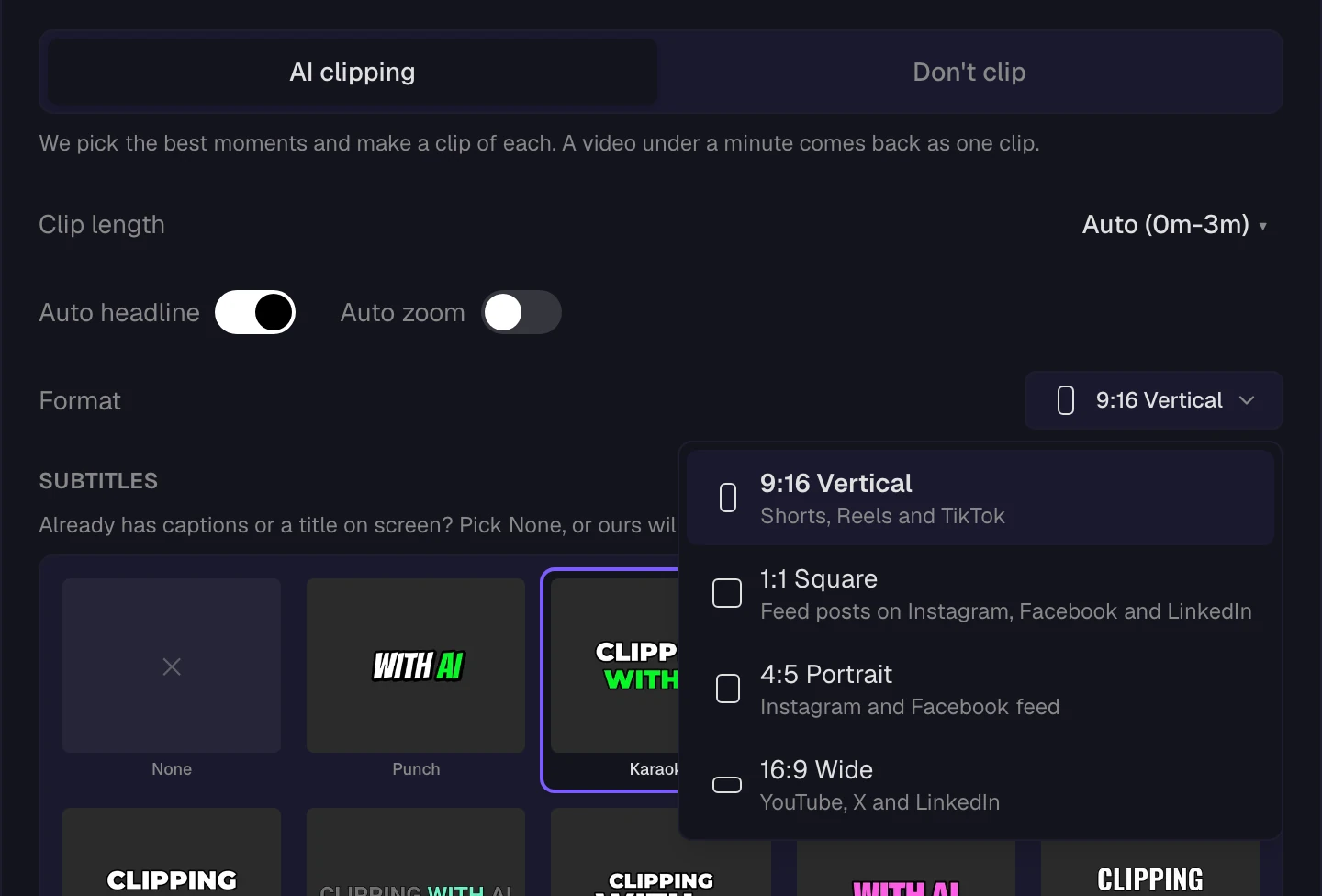
Vertical 9:16, square 1:1, portrait 4:5 or wide 16:9. Pick the shape when you submit the video. Vertical, square and portrait clips follow the speaker. Wide clips show the whole picture.
In a two-person podcast it cuts to the person speaking and splits the screen when both talk.
Every clip is checked frame by frame before you see it. A clip that fails the check is left out.
When a slide or shared screen is on, the clip shows the whole thing instead of cropping the text off.
How it works
1 credit is 1 minute of video, and the Free plan adds 30 credits a month.
Step 1
A YouTube, Instagram or Dropbox link, or a video file, up to 60 minutes. Longer video, up to 3 hours? Pick the 60 minutes you want.
Step 2
It picks the moments, keeps the person talking in frame, and adds captions in the style you chose, with a hook headline on top.
Step 3
Each clip is an MP4 file with the captions burned in. Change anything first in the clip editor.
Clip editor
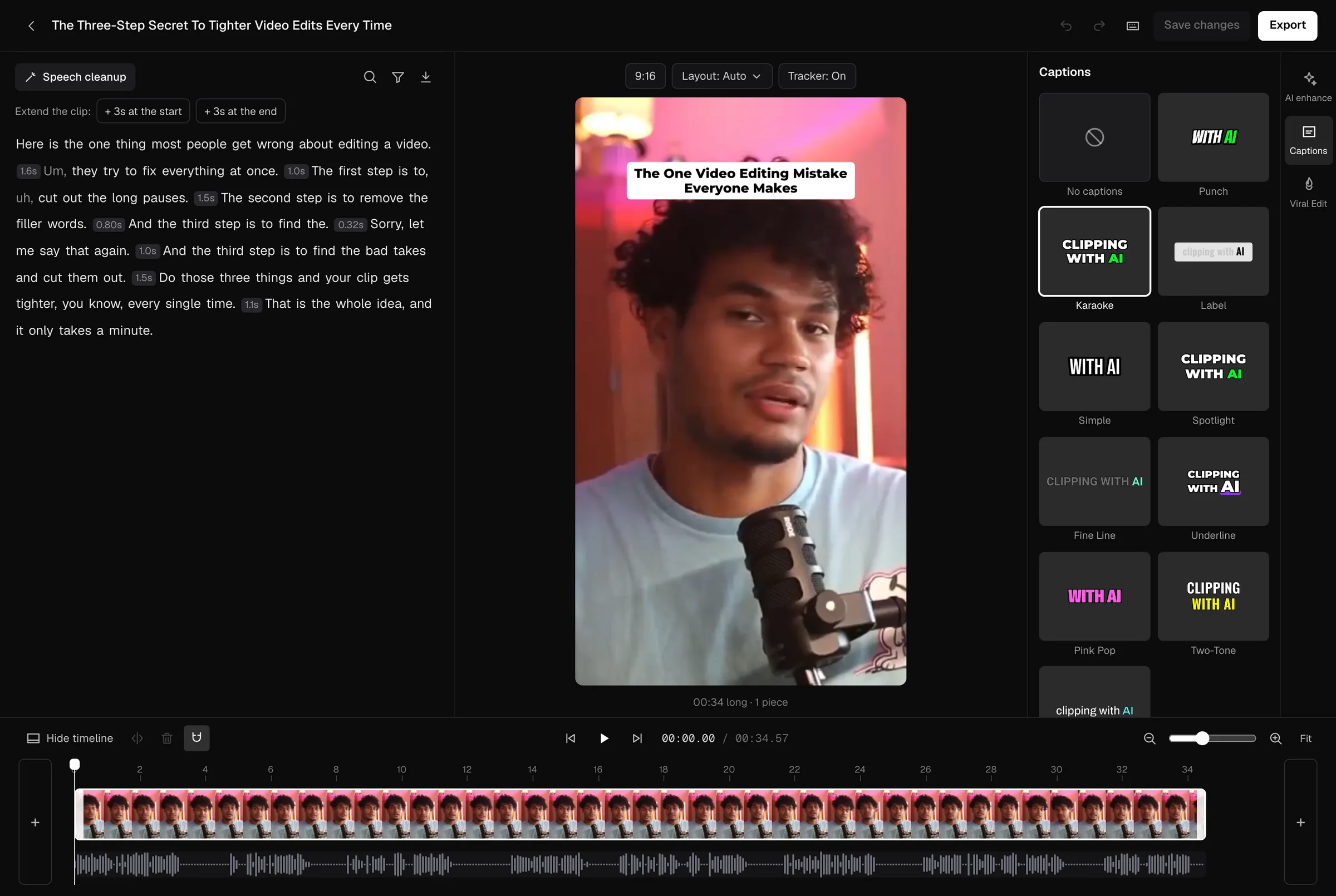
The editor is on every plan, and saving costs no credits.
More in your account
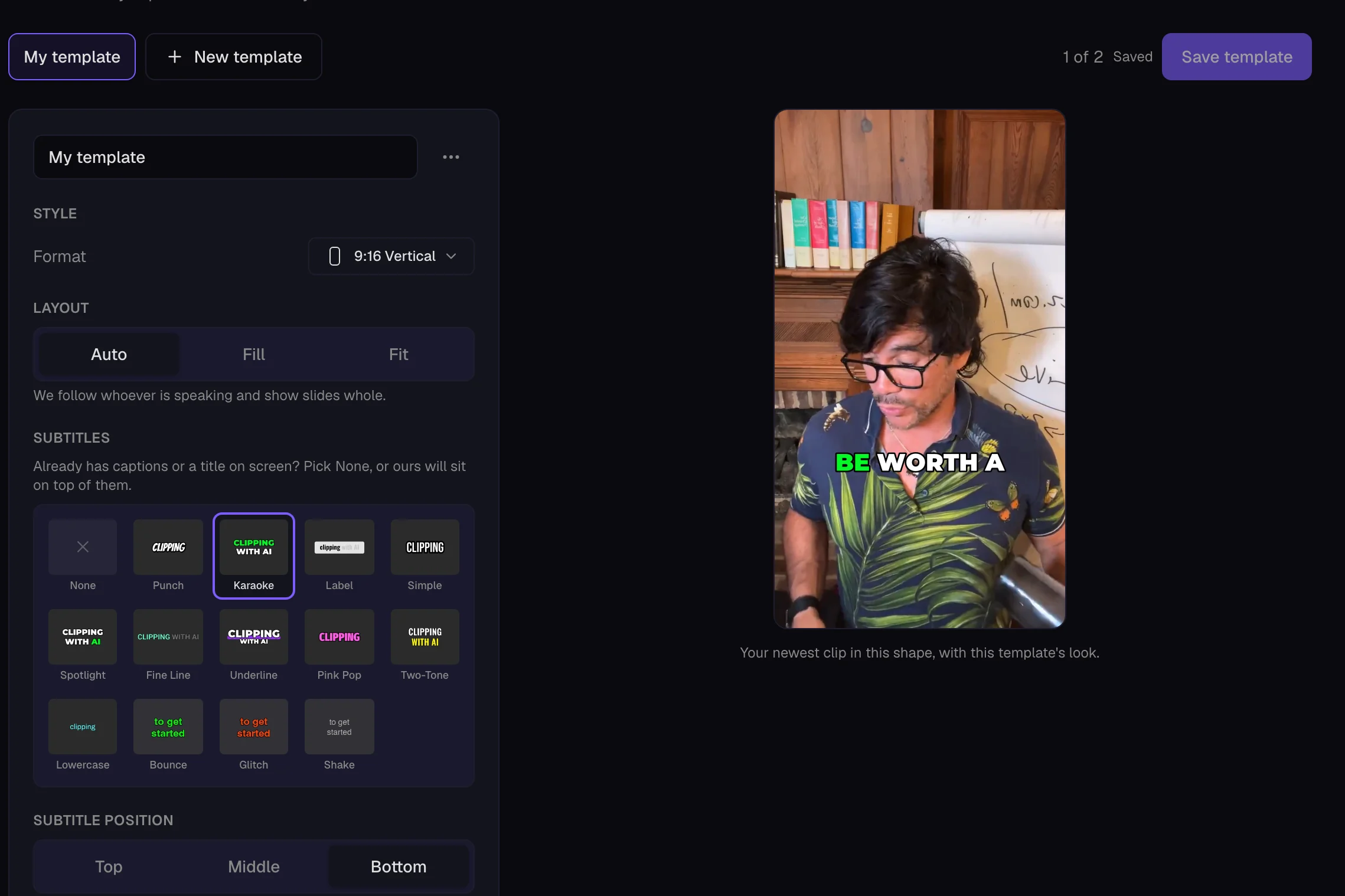
Save your look once: the clip's shape, captions, your logo, an intro, an outro and music under your voice. Pick it when you start a video and every clip comes out that way. On Starter and Pro.
Like a clip and it is in Favorites. Make your own collections to group clips from different videos. A clip can be in more than one.
Paste a YouTube, Instagram or Dropbox link, or upload a video file. MasterClip picks the moments, keeps the person talking in frame, adds captions, and gives you clips to download.
Up to 60 minutes for each video. For a video of up to 3 hours, choose the 60 minutes you want with the time range. Videos longer than 3 hours are not accepted, even with a time range.
The submit page shows the usual time before you confirm. An uploaded 10 minute video is usually ready in 2 to 10 minutes and a 60 minute video in 15 to 35 minutes, counted from when work on it starts. A link takes a little longer, because the video is fetched first. If other videos are ahead of yours, yours waits first.
English only for now.
30 minutes of video a month, and no card is needed. Free clips have a small watermark and are deleted after 3 days, so download the ones you want. The clip editor and 3 Viral Edits are included.
Starter is $7 a month for 100 minutes of video. Pro is $21 a month for 250 minutes. Business is $67 a month for 750 minutes. Paying yearly takes 30% off. Clips made on a paid plan have no watermark, and your videos and clips are kept while you are on a paid plan. If the plan ends, they are deleted 3 days later.
Yes, on every plan, and saving costs no credits. Trim it, cut parts out by deleting words in the transcript, change the captions, or change how the picture is framed.
Vertical 9:16, square 1:1, portrait 4:5 or wide 16:9. You pick the shape when you submit the video.
A second, AI edited version of one clip, with zooms, text pops, sound effects, music and cutaways. Your original clip stays as it is. Every account gets 3 to try. After those, Starter gets 5 a month, Pro 15 minutes of clip time a month and Business 60 minutes. It works on vertical clips.
Yes. Only submit videos you own or have permission to use.
More answers are in theHelp center